

How to Set Up & Update Your Digital Business Card
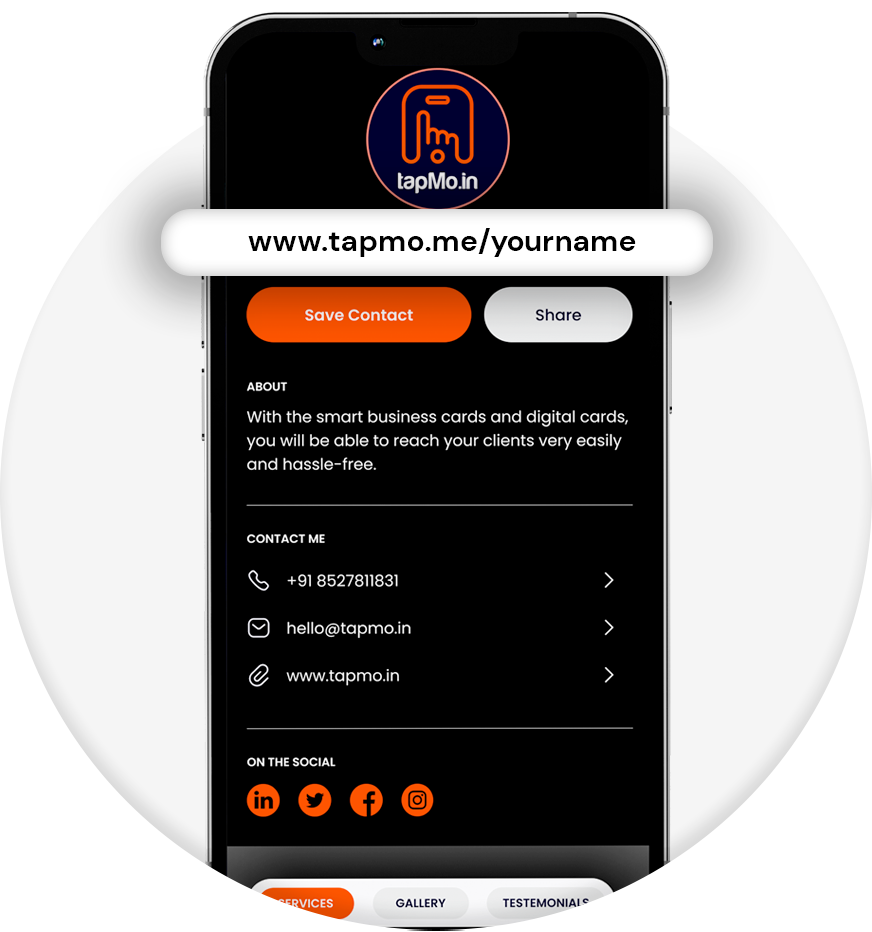
Create your TapMo profile, customize your tapmo.io link, add your contact details, and update everything anytime from the TapMo portal. Your NFC card, QR code, and profile link stay connected to the same live profile.
Set up your digital business card once. Then update it whenever your details change.
A TapMo smart business card connects your physical card to your online profile. You can share your contact details, social profiles, website, portfolio, and services with one tap.
No app installation needed. No reprinting when your information changes.
What do you need before setup?
Prepare these items before you begin:
- Your TapMo NFC business card
- A working email address
- Your professional contact details
- Your social media profile links
- Your logo or profile photo
- Your website, portfolio, or service information
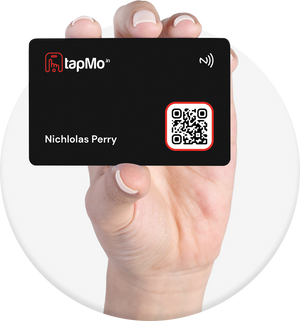
TapMo cards also include a QR code. Anyone can scan it if their phone doesn’t support NFC.
Your digital profile can work through:
- NFC tap
- QR code scan
- A custom link
- Social media sharing
Learn more about TapMo digital cards before you start.
Step 1: Create your TapMo account
Start by opening the TapMo profile portal.
Create your account using the email address connected to your order. Use an email you check regularly. You may need it for account access and future updates.
Follow these steps:
- Open the TapMo profile portal.
- Select the registration or sign-up option.
- Enter your email address.
- Create a secure password.
- Submit your registration details.
- Log in to your new account.
If TapMo already created your profile, log in with your provided details instead.
Keep your login information secure. Your account controls everything people see on your digital business card.
Step 2: Link or open your card profile
After logging in, locate the profile connected to your card.
Your profile may already appear inside the dashboard. If you have several cards, check each profile carefully.
Look for details such as:
- Your name
- Your card ID
- Your order information
- Your existing profile link
- Your company or brand name
Open the correct profile before making changes.
This step matters when you manage cards for a team. You don’t want to update the wrong employee’s details.
Step 3: Customize your tapmo.io link
Your custom link gives people another way to open your digital profile.
TapMo supports custom profile links in this format:
tapmo.io/yourname
Choose a short, professional link. Use your name, brand name, or business name.
Good examples include:
tapmo.io/rahulsharmatapmo.io/creativebyanyatapmo.io/abcconsulting
Avoid unnecessary numbers and difficult spellings. Your link should feel easy to say and remember.
Follow these steps:
- Open your profile settings.
- Find the custom URL or username field.
- Enter your preferred name.
- Check the available link.
- Save the new URL.
Your link may become unavailable if another user already selected it. Try a simple variation in that case.
A clean link makes your networking more professional.

Step 4: Add your contact details
Now add the information people need to contact you.
Keep your details accurate and easy to scan. Add only the information you want to share publicly.
Include these details:
- Full name
- Job title or designation
- Company name
- Mobile number
- Email address
- WhatsApp number
- Business address
- Website
- Short professional introduction
Your name should appear clearly at the top. Add your role next. Then explain how people can contact you.
For example:
Priya Mehta
Business Development Manager
Helping retail teams improve customer experiences
Check every number and email address before publishing. One incorrect digit can cost you a valuable lead.
A digital business card works best when your essential information appears first.
Step 5: Add your social media profiles
Your social profiles help people continue the conversation after your first meeting.
Open the social media section in your profile dashboard. Add the links you actively use.
You can include:
- X
- YouTube
- Behance
- Other professional platforms
Copy each link carefully. Test every link after saving it.
Prioritize the platforms that show your work or expertise. A freelancer may highlight Behance and Instagram. A sales professional may focus on LinkedIn and WhatsApp.
Don’t add inactive profiles. Too many empty links can make your profile look unfinished.
Step 6: Upload your photo and logo
Your profile image creates an immediate visual impression.
Use a clear, high-quality headshot for a personal profile. Use your company logo for a business profile.
Choose an image with:
- Good lighting
- A clean background
- A professional appearance
- Strong contrast
- Correct cropping
Businesses can add their logo and brand colors. TapMo supports profile customization through its digital card portal.
Your branding should match your physical NFC smart business card. Consistent colors and images help people remember you.

Step 7: Add products, services, or portfolio items
Your digital business card can do more than share contact details.
Use your profile to show what you offer. Add products, services, portfolio items, or selected work.
For each item, include:
- A clear title
- A short description
- A relevant image
- A website or enquiry link
- A simple next step
Keep descriptions short. Explain the result your customer can expect.
For example:
- Website design for growing businesses
- Corporate photography for events and teams
- Property advisory for first-time buyers
You can also add a gallery. This works especially well for creatives, consultants, agencies, and service providers.
Your profile becomes a compact professional website. It gives people more reasons to contact you.
Step 8: Save and publish your profile
Review your profile before publishing it.
Check the following:
- Your name appears correctly.
- Your phone number works.
- Your email address works.
- Your social links open correctly.
- Your logo or photo looks sharp.
- Your custom link uses the correct spelling.
- Your products and services show the right information.
Select the save, update, or publish option in your dashboard.
Your NFC card and QR code point to the online profile. The card itself doesn’t store all your contact information.
That makes future updates simple.
Step 9: Test your NFC smart business card
Test your card before sharing it at an event or meeting.
On an iPhone
- Unlock the iPhone.
- Hold the card near the phone’s top edge.
- Wait for the NFC notification.
- Tap the notification.
- Check your digital profile in the browser.
On an Android phone
- Open Settings.
- Search for “NFC.”
- Turn NFC on.
- Unlock the phone.
- Hold the card against the back.
- Move the card slightly if needed.
- Open the notification.
NFC antenna positions vary between phones. Try the area near the camera or the center of the back panel.
You can check TapMo’s compatible phone list for supported devices.
If the phone doesn’t support NFC
Use the QR code printed on your card.
Open the phone camera and scan the code. The QR code should open the same digital profile.
How do you update your digital business card?
Update your profile whenever your information changes. You don’t need a new physical card.
Follow these steps:
- Log in to the TapMo profile portal.
- Open the correct card profile.
- Edit the information that changed.
- Review your profile.
- Save or publish the updates.
- Test the card again.
You can update details such as:
- Phone number
- Email address
- Job title
- Company name
- Website
- Social media links
- Profile photo
- Logo
- Services
- Products
- Portfolio items
- Brand colors
Your existing NFC card continues pointing to the same profile link. Anyone tapping or scanning it sees the latest version.
This helps when you change jobs, launch a new service, update your portfolio, or rebrand your company.
What should you check during regular updates?
Review your profile every few months. Small updates can improve your networking results.
Check these areas:
- Remove outdated services.
- Replace old profile photos.
- Update your job title.
- Confirm your phone number.
- Test your WhatsApp button.
- Add recent work.
- Review your social links.
- Check your custom URL.
- Remove inactive accounts.
Ask a colleague to open your profile. Fresh eyes can spot unclear wording or missing information.
Keep your first screen focused. People should understand who you are within seconds.
Why use a digital business card?
A digital business card gives you more control than a paper card.
You can:
- Share unlimited times.
- Update details without reprinting.
- Send one professional link.
- Show your social profiles.
- Add products and services.
- Share your portfolio instantly.
- Reduce paper waste.
- Let recipients save your contact easily.
A TapMo smart business card combines this profile with NFC technology and a physical card.
Tap once. Share more. Keep everything current.
Your digital business card stays useful as your career and business grow. It’s simple, flexible, and remarkably professional.