

Is My Phone NFC-Compatible? A Quick Check Guide (iOS & Android)
Check NFC by searching NFC in Android Settings or reviewing your phone’s specs. On iPhone, NFC is built in and usually works automatically. On Android, you may need to turn NFC on in Settings, Connections, or Connected devices before you tap.
You can share your contact details in seconds with an NFC-compatible phone. Your smart business card only needs one tap.
Most recent iPhones and Android phones support NFC. But settings, antenna locations, and scanning steps can differ.
Let’s check your phone.
What does NFC compatibility mean?
NFC stands for Near Field Communication. It lets two nearby devices exchange small amounts of information.
With an NFC business card, your phone reads a tiny chip inside the card. Your phone then opens a digital profile through your browser.
You don’t need:
- A special app
- Bluetooth pairing
- Manual contact entry
- A physical paper card
- An internet connection on the card itself
Your phone needs NFC hardware. Your browser needs an internet connection to open the shared profile.
TapMo cards also include a QR code. Anyone without NFC can scan the code instead.
Check TapMo phone compatibility
How can you check NFC compatibility?
Start with your phone’s settings. This method works across most Android brands.
- Open Settings.
- Tap the search bar.
- Search for NFC.
- Look for an NFC setting or toggle.
If your phone shows an NFC option, it supports NFC.
You can also check your exact model’s technical specifications. Search for “NFC” under connectivity features.
If no NFC setting appears, your phone may not support NFC. Some budget phones exclude NFC, even when they look similar to compatible models.
Don’t worry. You can still access a TapMo profile through its QR code or custom link.
Which iPhones support NFC?
Apple has included NFC hardware in iPhones for many years. However, NFC features vary between older and newer models.
Here’s a practical guide:
| iPhone model | NFC business card support |
|---|---|
| iPhone 6 and 6 Plus | NFC hardware, with limited tag features |
| iPhone 7, 8, and X | NFC tag reading through the NFC Tag Reader |
| iPhone XS, XR, and newer | Background NFC reading without opening an app |
| iPhone SE, 2nd generation and newer | NFC tag reading supported |
For a smooth smart business card experience, use an iPhone 7 or newer. Newer models offer the easiest tapping experience.
TapMo’s compatible phone list includes supported iPhone models. Check your exact device before relying on NFC alone.
Do you need to turn on NFC on an iPhone?
No. iPhones don’t offer a general NFC on-and-off switch.
The system manages NFC automatically. Your iPhone activates NFC when you use a supported feature.
On iPhone XS, XR, and newer
You can usually scan an NFC card directly.
- Unlock your iPhone.
- Hold the top back of your phone near the NFC business card.
- Wait for the notification.
- Tap the notification to open the digital profile.
You may need to keep the phone close for one or two seconds.
On iPhone 7, 8, and X
These models may require the NFC Tag Reader.
- Open Control Center.
- Tap NFC Tag Reader.
- Hold the top back of your iPhone near the card.
- Tap the notification that appears.
Don’t see the NFC Tag Reader? Add it here:
Settings → Control Center → NFC Tag Reader
Apple lists supported models in its NFC Tag Reader guide.
Where does the NFC reader sit on an iPhone?
The NFC antenna sits near the top back of the iPhone.
Aim the upper portion of the phone at the TapMo card. Avoid placing the bottom of the phone against the card.
Your phone case can affect performance. Thick cases, metal plates, and wallet cases may block or weaken the signal.
Try these quick fixes:
- Remove a thick case.
- Move the top back of the phone slowly.
- Hold the phone still for a moment.
- Keep the card flat.
- Unlock your phone before tapping.
A small position change often solves the problem.
How do you turn on NFC on Samsung phones?
Samsung places NFC inside the Connections settings.
- Open Settings.
- Tap Connections.
- Select NFC and contactless payments.
- Turn NFC on.
You can also use Quick Settings.
- Swipe down twice from the top of your screen.
- Find the NFC tile.
- Tap it to enable NFC.
Can’t find the tile? Tap the three-dot menu and choose Edit buttons. Add NFC to your Quick Settings panel.
Samsung also shows the antenna location for many Galaxy models inside the NFC settings screen. Open the detailed NFC page and follow the on-screen diagram.
Most Galaxy phones read cards from the upper or central back area. Start near the camera and move down slowly.
For official guidance, see Samsung’s NFC troubleshooting instructions.
How do you turn on NFC on OnePlus phones?
OnePlus menu names can change with OxygenOS versions. The fastest method uses Settings search.
- Open Settings.
- Search for NFC.
- Tap the NFC result.
- Turn the toggle on.
You may also find NFC through one of these paths:
- Settings → Connection & sharing → NFC
- Settings → Bluetooth & device connection → NFC
- Settings → Connected devices → Connection preferences → NFC
Some OnePlus phones include an NFC tile in Quick Settings.
- Swipe down from the top.
- Look for the NFC icon.
- Tap it to turn NFC on.
If you don’t see the icon, edit your Quick Settings tiles and add NFC.
The NFC antenna usually sits on the back of the phone. Start around the upper half, then move toward the center.
How do you enable NFC on Google Pixel phones?
Google Pixel phones use a simple settings path.
- Open Settings.
- Tap Connected devices.
- Select Connection preferences.
- Tap NFC.
- Turn on Use NFC.
You can also search for NFC directly in Settings.
Pixel phones usually read NFC cards from the upper back area. Hold that section near the TapMo card until your phone responds.
Google provides more information in its Pixel NFC support guide.
What about Xiaomi, Vivo, Oppo, and other Android phones?
Android menus vary by brand and software version. Use Settings search first.
Search for:
- NFC
- Near Field Communication
- Contactless payments
- Tap and pay
If NFC appears, open the setting and enable it.
You may find it under:
- Connections
- Connection & sharing
- Connected devices
- More connection settings
- Wireless networks
Some phone models support NFC in one region but not another. Check your exact model number, not only the phone series.
For example, one version of a phone may include NFC while another version removes it. This difference often affects regional models.
Where should you tap your Android phone?
Most Android NFC antennas sit on the upper or central back of the phone.
The exact position depends on your model.
Try this method:
- Unlock your phone.
- Turn NFC on.
- Place the upper back near the card.
- Move the phone slowly across the card.
- Stop when the phone vibrates or shows a notification.
You may need to test two or three positions. NFC works across a very short distance, so keep the phone close.
Avoid tapping with the phone’s screen. The antenna usually sits behind the back cover.
How do you tap a TapMo smart business card?
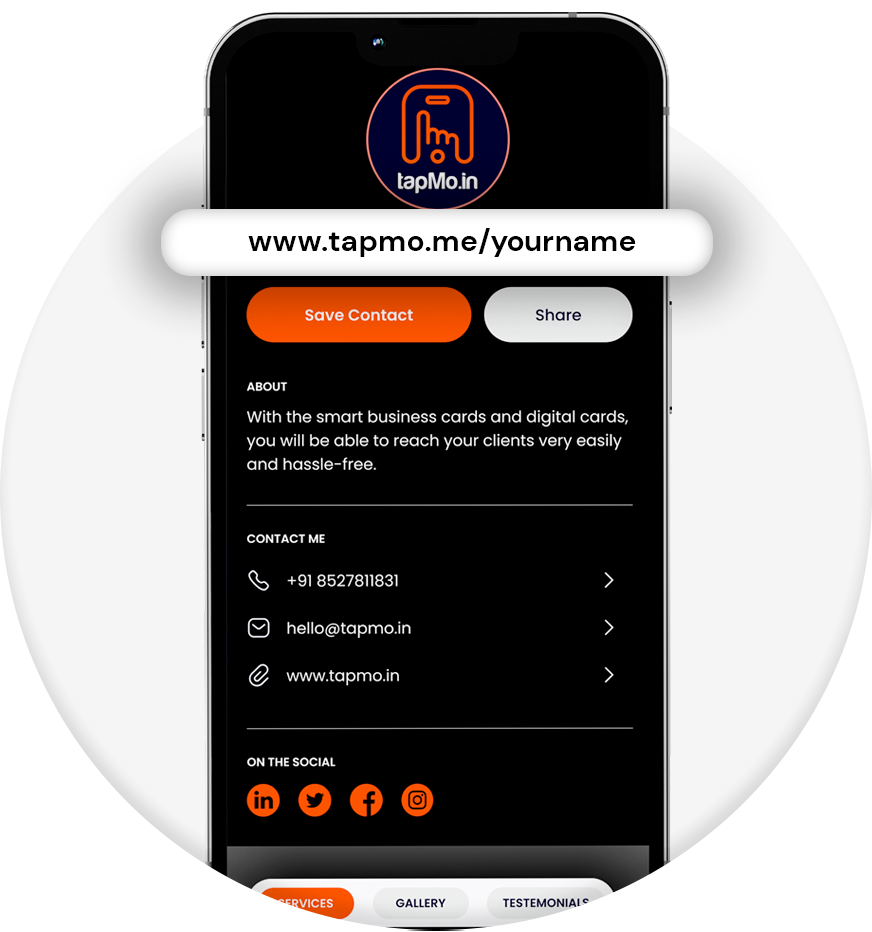
Once NFC works on your phone, tapping takes only a few steps.
- Unlock your phone.
- Hold the phone’s NFC area near the TapMo card.
- Wait for the notification.
- Tap the notification.
- Save the contact or explore the digital profile.
The recipient doesn’t need a TapMo account. They also don’t need an app.
The profile can display:
- Your name and contact details
- Social media links
- Company information
- Products and services
- Portfolio images
- Testimonials
- Lead forms
You can update your profile without replacing the physical card.
See how TapMo digital cards work.
Why isn’t my NFC card responding?
Try these checks before assuming your phone lacks NFC.
- Confirm NFC remains enabled.
- Unlock the phone before tapping.
- Remove thick or metallic cases.
- Move the upper back slowly over the card.
- Hold the phone close for two seconds.
- Keep other cards away from the phone.
- Test the card with another NFC phone.
- Use the printed QR code as an alternative.
Some phones stop NFC scans while the screen stays locked. Unlocking the phone usually fixes this issue.
Metal accessories can also interfere with scanning. Remove magnetic wallet inserts, metal rings, and rear plates temporarily.
If one phone works and another doesn’t, check the second phone’s NFC settings and antenna position.
Do all NFC-compatible phones open a smart business card?
Most modern NFC-compatible phones can open a TapMo smart business card. The phone reads the card’s web link and opens it in a browser.
Older devices may need a manual reader feature. Some devices may support payments but not general NFC tag reading.
That’s why TapMo includes a QR code and custom profile link. You get more than one sharing method.
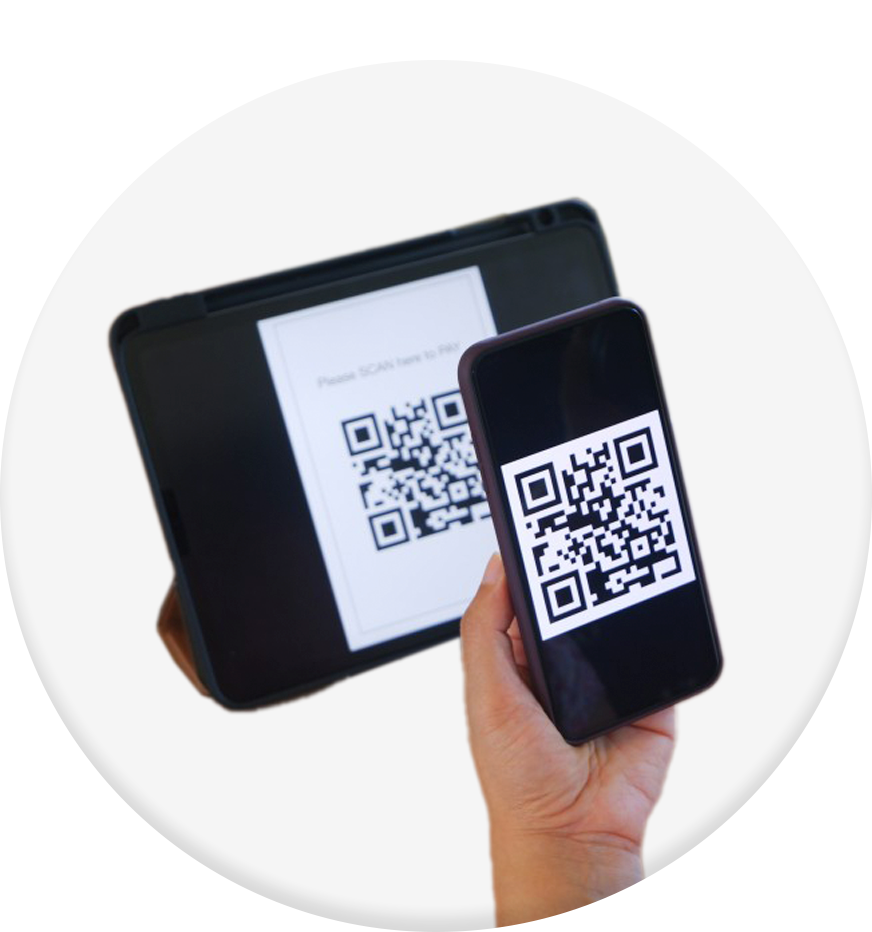
Your TapMo smart business card works across iPhone and Android devices without app installation.
What should you remember?
Use Settings search to check Android NFC compatibility. iPhones manage NFC automatically.
Aim the top back of an iPhone at the card. Try the upper or central back of an Android phone.
Keep your phone unlocked. Remove cases that contain metal. Move the phone slowly if the first tap fails.
With TapMo, your NFC business card works as a reusable digital profile. You can share your details, links, and portfolio whenever you meet someone new.
It’s simple, flexible, and reliably professional.