TapMo Dashboard Explained: Digital Business Cards, Leads, Analytics and Team Management
Your digital business card is easier to manage when its profiles, inquiries and activity are all in one place. The TapMo dashboard brings those tools together, from editing a card and designing its QR code to managing leads and deciding what teammates can access.
Start with your dashboard overview
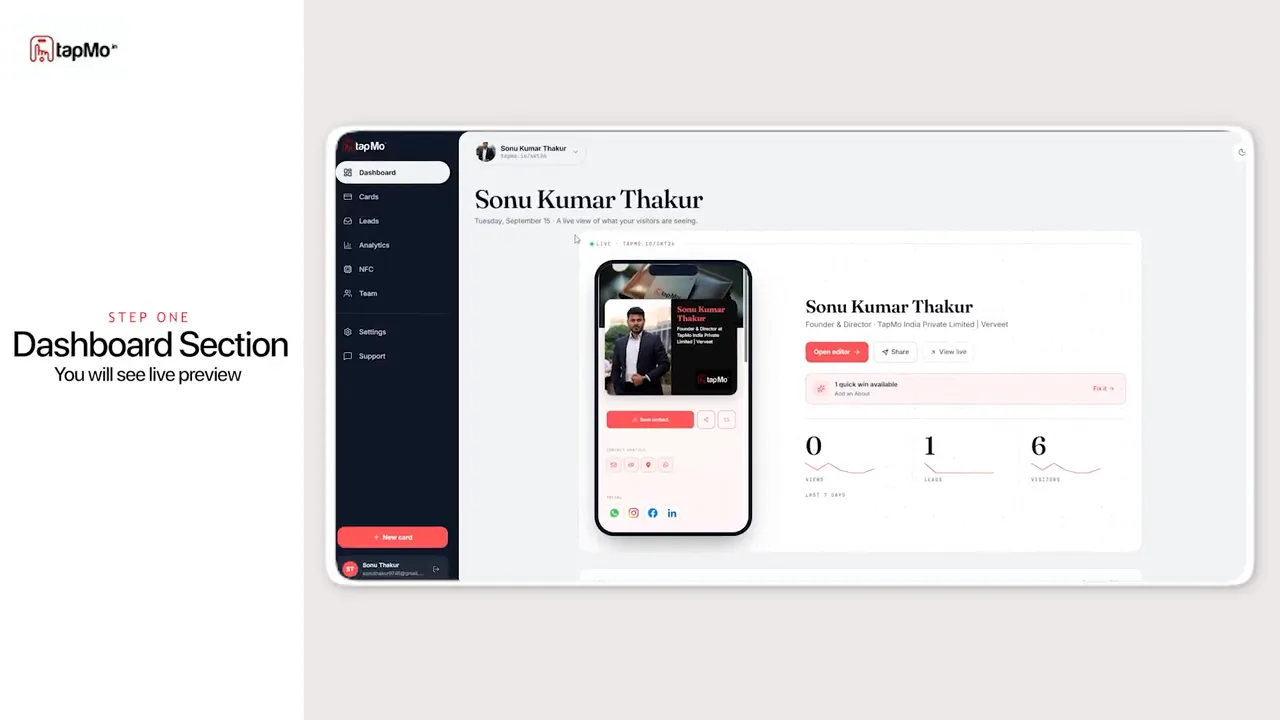
The dashboard opens with a live preview of your digital card, so you can see the profile you are sharing. Alongside it are key metrics: views, leads and visitors from the last seven days. It is a quick way to check both how your card looks and whether people are engaging with it.
Create and customize digital business cards
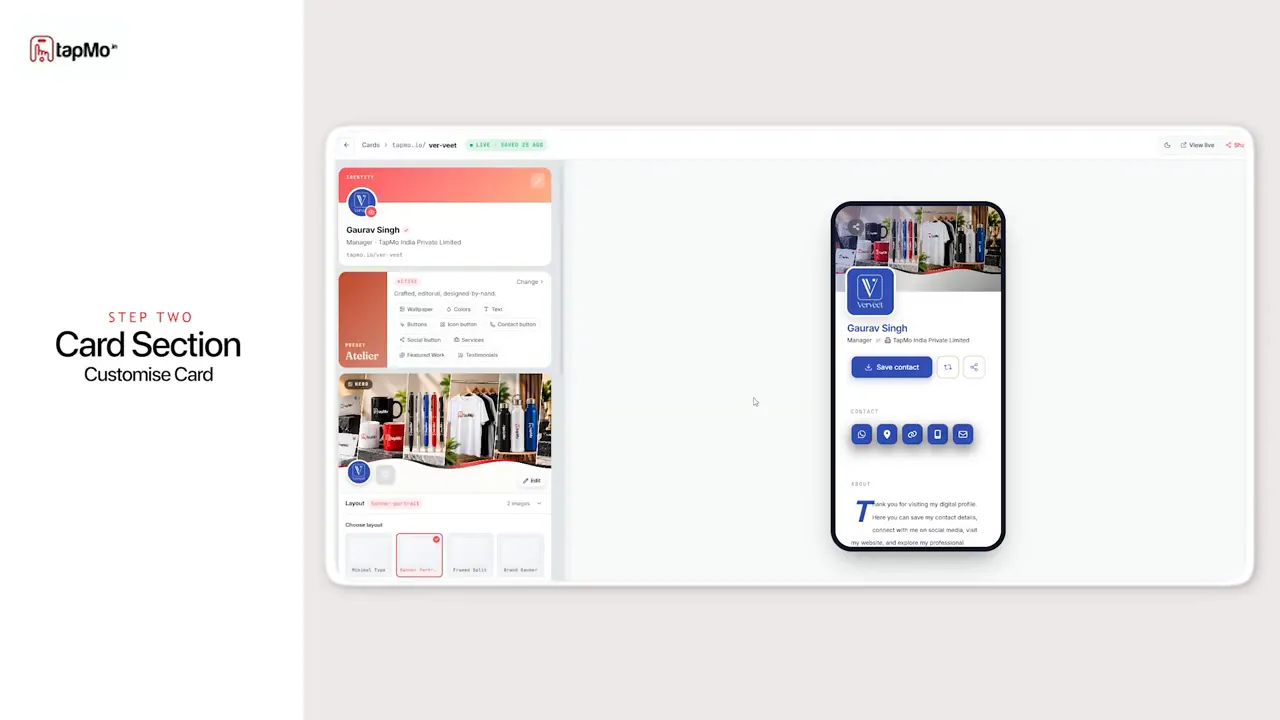
Open Cards to manage your profiles in one place. You can create a new card or select an existing one to edit. In the card editor, you can customize its layout while keeping a preview of the digital profile in view.
Your card can bring together the professional information you want to share, including contact details, social links, a website and a portfolio. If you maintain more than one profile, the Cards section keeps them together rather than scattering them across separate tools.
Make the QR code your own
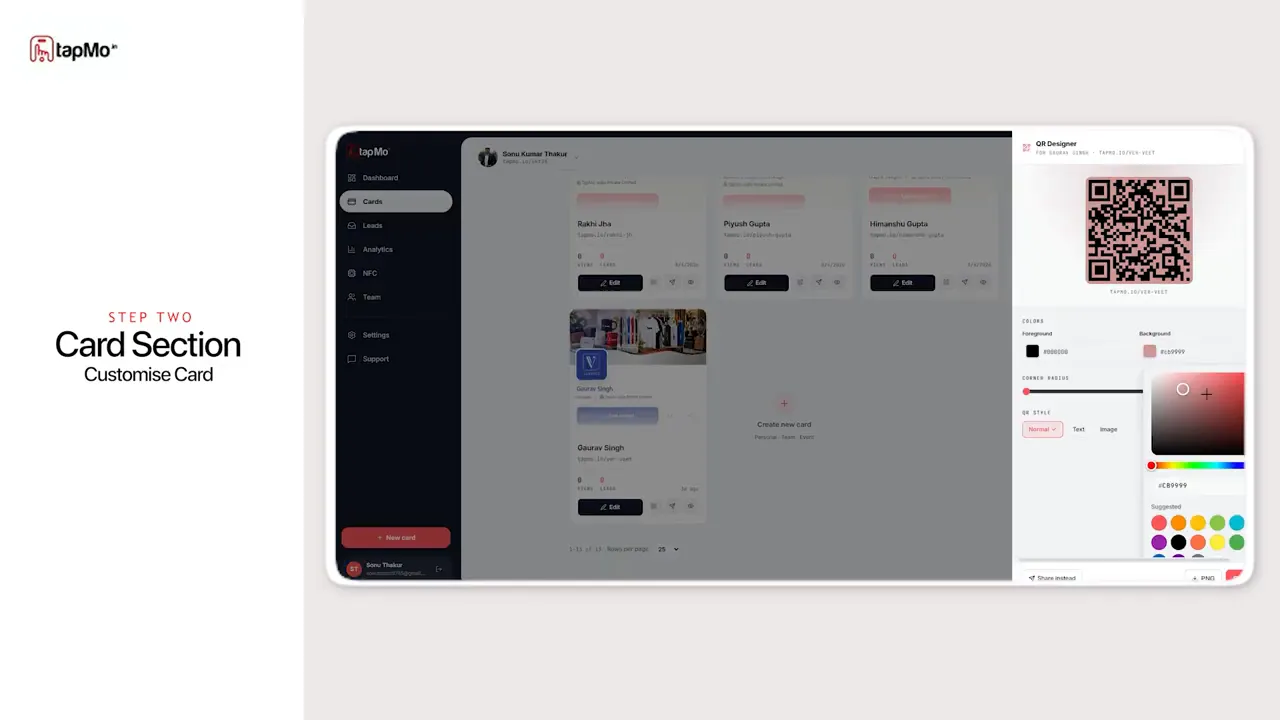
From the card workflow, open the QR designer to adjust the code’s colors, style and branding. Once it looks right, you can share or download it. That gives you another way to share the same digital profile without asking someone to type a link.
Keep inquiries organized in Leads
The Leads section collects inquiries from your digital profile. You can review lead details, filter the list, update a lead’s status and export the data. Those controls help you move from collecting a contact to keeping track of what needs attention next.
Understand profile activity with Analytics
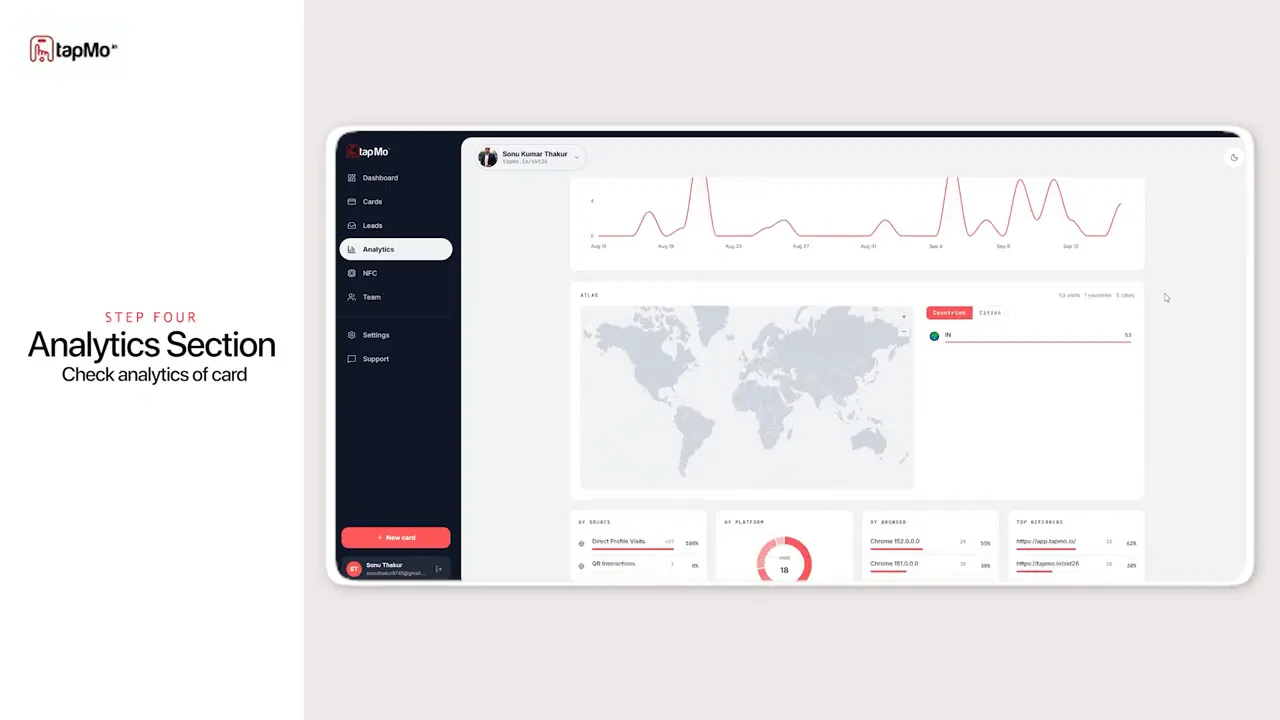
Switch to Analytics for a closer look at how your profile is performing. The dashboard shows views over time, traffic sources, visitor locations, devices and top referrers. Together, these reports offer more context than a view count alone: they show when people arrive and how they find your profile.
Connect an NFC card to a digital profile
Under NFC, you can link a physical smart card to a digital profile. QR codes and NFC cards give you different ways to share that profile, while the dashboard remains the place where you manage it.
Collaborate without giving everyone the same access
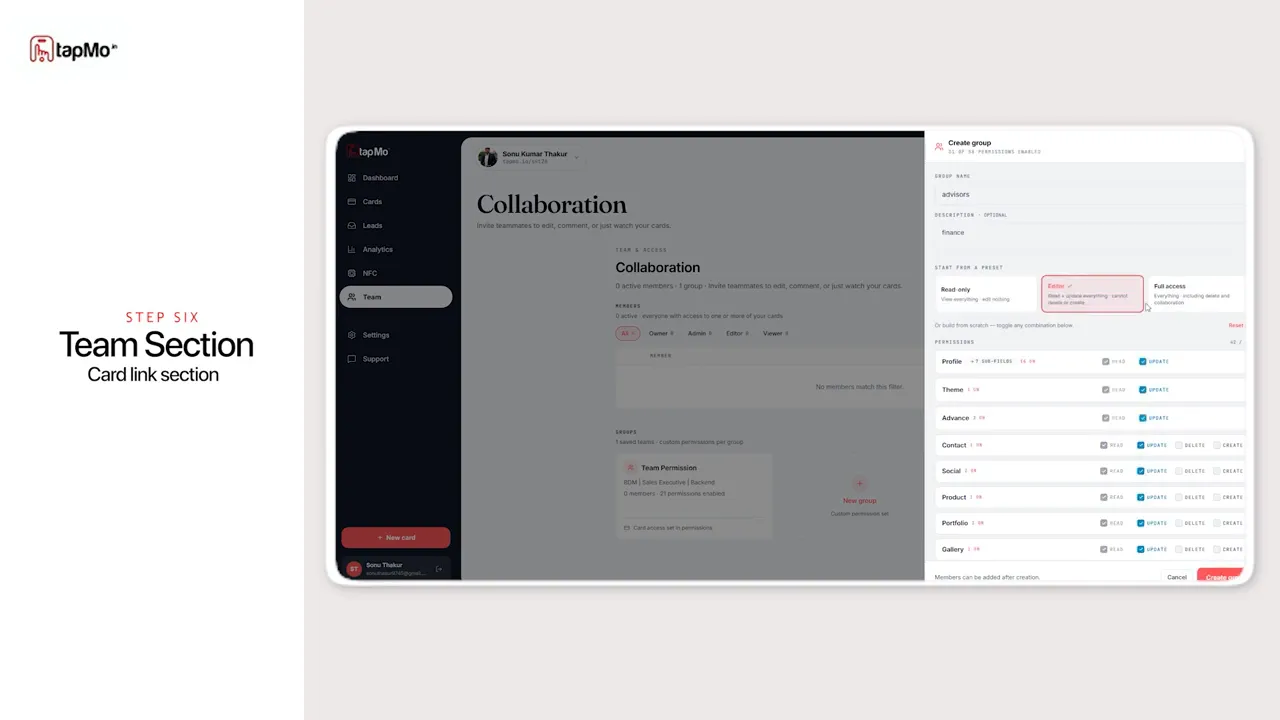
In Team, you can invite collaborators, create groups and manage access. Custom permissions cover areas such as the profile, theme, contact information, social links, products and gallery. You can control what each team member is allowed to view or edit, making it easier to work together without handing over every setting.
That is the core TapMo workflow: build a digital identity, share it through a profile link, QR code or NFC card, then manage the resulting leads and activity from one dashboard.
TapMo Dashboard Explained | Digital Business Card, Leads & Team Management | Lead Management | CRM